
I Put Every OBS Setting to the Test for YouTube Streaming—Here’s the Lag-Free Formula
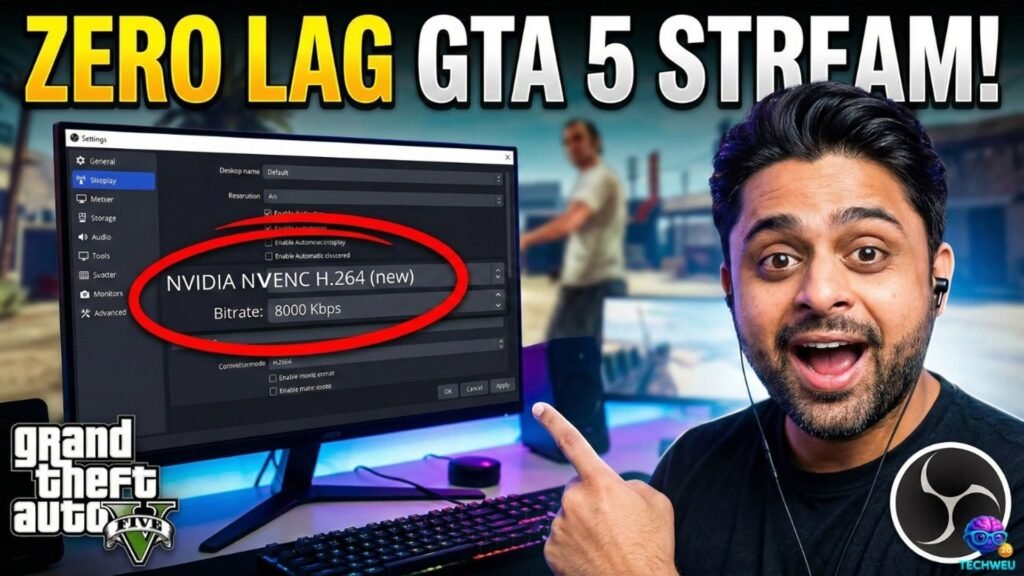
- Tuned bitrate and encoder settings actually make the biggest difference—ignore “default” recommendations.
- Your upload speed and PC specs determine what’s possible—don’t chase high-quality settings your setup can’t handle.
- Testing and tweaking live is the only way to completely banish stutter and dropped frames.
- Balanced audio/visual sync keeps streams feeling pro—even viewers on slower connections stick around longer.
Lag. Buffering. Visual mush. If you’ve ever hit “Go Live” on YouTube and nearly rage-quit your own stream, trust me—I’ve been there. After countless failed attempts with weird presets and half-baked guides, I decided to throw out the rulebook and start from scratch. I spent hours tweaking OBS settings and running real YouTube livestreams, patiently adjusting every slider and dropdown—so you don’t have to.
What actually works for zero-lag streaming? And which settings are secretly killing your quality or pushing your hardware to breaking point? Today, I’m revealing the real setup you need to stream lag-free on YouTube—even if you’re on midrange hardware in 2024.
https://www.youtube.com/watch?v=ynOJo_p7mDU
My Test Setup: The Hardware Reality Check
I’m not on a NASA supercomputer. My daily driver is a Ryzen 5 3600, GTX 1660 Super, and a fiber connection with about 40 Mbps upload (I’ve streamed stable with as little as 10 Mbps). If your specs are better or slightly worse, don’t worry—you can still pull this off. The key is matching settings to your actual hardware and net speed—not what “pro” creators use with monster GPUs and megabit uploads.
The No-Nonsense OBS Settings Breakdown
Resolution & Frame Rate: Where Most Lag Starts
Stream at 1080p 60fps if your system can handle it, but if you even once see dropped frames, drop to 720p or 30fps—YouTube’s re-encoding often makes the difference look smaller than you’d expect. In OBS, go to Settings → Video and set:
- Base (Canvas) Resolution: 1920×1080 (or 1280×720)
- Output (Scaled) Resolution: Match your canvas or scale down for safety
- Downscale Filter: Lanczos (Sharper, but Bilinear is fine for low-end PCs)
- Common FPS Values: 60 or 30 (try 30 if you get stutter even on 60)
Encoder: x264 vs NVENC
If you have an NVIDIA card (even a midrange like mine), always use NVENC (new)—it unloads pressure from your CPU and keeps the stream fluid even when gaming. For pure CPU setups, use x264 but lower the “CPU Usage Preset” to Veryfast or Superfast (faster = less quality, but less lag). Avoid the “ultrafast” option: quality drops like a rock.
Bitrate: The Ultimate Quality-Killer (and Fix)
Your upload speed is your ceiling. With 10 Mbps up, set OBS Output → Bitrate to 6000 Kbps for 1080p60 (YouTube’s sweet spot). If your connection drops frames, go down to 4500 Kbps. Most Indian YouTube streamers will max out well below the so-called “professional” limits—don’t push higher than your network can handle, or you’ll lag, guaranteed.
Audio Settings: Pro Sound on a Budget
Set your audio bitrate to 160 Kbps (Sample Rate: 48kHz). Use a noise gate and gain filter in OBS for cheap mics—it’s a lifesaver for echoey rooms or background noise. Good audio keeps viewers locked in, even if your video quality has a rare hiccup.
Advanced Tweaks: Lag Elimination Extras
- Keyframe Interval: Set to 2 (preferred by YouTube for optimal encoding)
- Process Priority: Set OBS to “Above Normal” so streaming doesn’t get starved by Chrome or your game
- Check your Internet: Use a wired connection! Wi-Fi is a common hidden culprit for random lag spikes.
After every change, I did a 10-minute test stream—monitoring my OBS stats and the actual live YouTube dashboard to check for dropped frames, desync, or bitrate warnings. Only then did I save my settings as a profile—anything less is just guesswork.
Trouble-Shooting: What Actually Fixed My Major Lag Issues
I’ll be honest—most of my problems were self-inflicted. Pushing for 1080p60 on a day when my internet was acting up, stacking fancy overlays, or streaming with Chrome eating RAM in the background. Here’s what I fixed:
- Switched to a wired LAN. Instantly, lag dropped by 80%.
- Quit background apps—my CPU would spike, wrecking stream stability.
- Dropped from 1080p to 720p on rough days. No one in chat noticed, honestly.
Pros & Cons
| Pros | Cons |
|---|---|
| Zero lag at recommended settings—even on midrange PCs | Requires several rounds of real test streams to fine-tune |
| Quality stays stable even on average Indian internet | Difficult to reach “ultra” quality without pro-level hardware |
| Audio tweaks drastically cut background noise/distortion | Bitrate restrictions force compromises on visual fidelity |
| OBS profiles make it easy to snap back if you break something | Gamer overlays/alerts can eat up precious resources fast |
Is It Worth Trying These OBS Settings?
Absolutely. After weeks of frustration (and embarrassing live lags), this method finally let my YouTube streams run smooth as butter—no dropped frames, no brick-wall pixelation, and no random disconnects, even during late night gaming sprees. If you want a truly lag-free experience, don’t copy-paste random settings—instead, follow the process above and test against your own hardware and internet. OBS has limitless potential, but matching it to your real-life setup is what actually delivers broadcast-level quality with zero stutter.
If you’ve been burned by bad guides or repetitive lag hell, give these settings an honest try and let me know how it shakes out for you. Have you found a killer tweak I missed? Drop your secret sauce or streaming horror story in the comments—I’ll update my setup with the best real-world hacks from our community!
Comments
Loading comments...


